Yes, if you already have a spreadsheet with your guests' names and info, you can upload it to Zola to build your guest list in minutes. Want to work from our Zola template? Head into your guest list and click the Upload Spreadsheet option on the upper right side of the screen, you'll see the option to download our template there!

Working from your own template? Make sure to follow the formatting tips below, so we can seamlessly upload your spreadsheet:
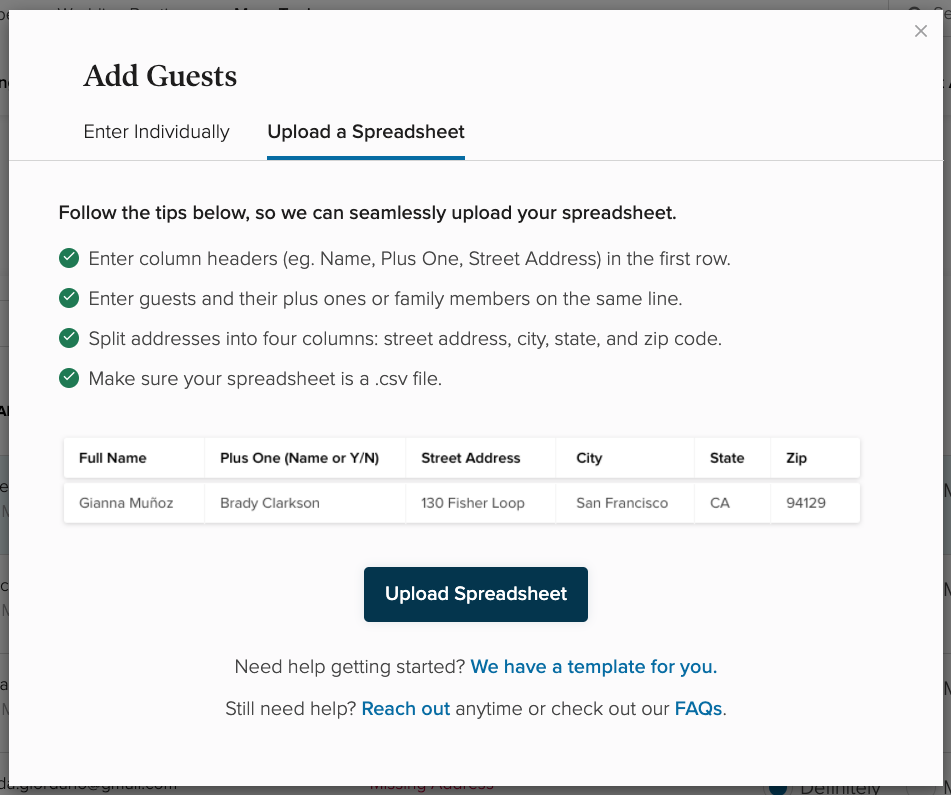
- Enter column headers (e.g. Name, Plus One, Street Address) on the first row.
- Enter individual guests on their own row
- Enter guests and plus ones or family members on the same row if you’d like to invite them as a group, but do not put all names into the same column. Plus ones and children should have their own column/header!
- Split addresses into four separate columns for street address, city, state, and zip code.
- Check to ensure that there are no empty rows or columns on your spreadsheet, as this can cause an error upon uploading.

Your spreadsheet needs to be saved as a .csv (comma-separated values) file. You can easily do this in Excel or Google Sheets.
- Excel: Click “File,” then “Save As…,” then select “Comma Separated Values (.csv) in the dropdown next to “File Format” or “Save as type.”
- Google Sheets: Click “File,” then “Download,” then “Comma-separated values(.csv, current sheet).”
When you're ready, head to your Guest List tab and click the “Upload Spreadsheet” button in the top right corner of your screen.

Once you've clicked the "Upload Spreadsheet" button you'll see this window and you'll want to click "Upload Spreadsheet" one more time.
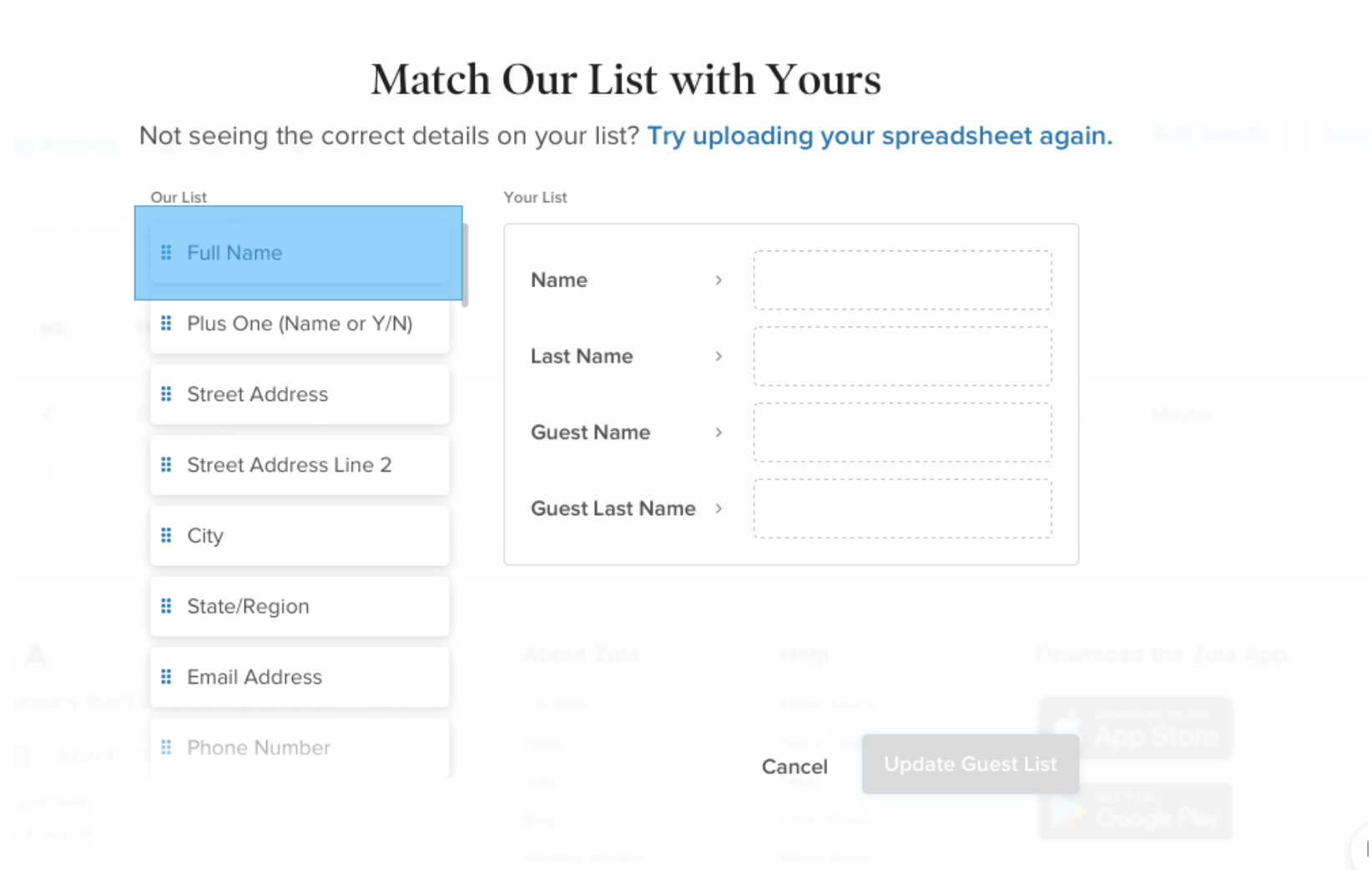
Once you've selected your .CSV file from your computer, you'll be asked to match the headers you made on your doc with the ones our system recognizes.
After you've completed this step, you'll see your newly uploaded guest list!
STILL HAVING TROUBLE?
Here are the most common Guest List Spreadsheet Import issues:
1. Empty columns or rows
Any empty rows or columns will result in an upload error. To check, open the guest list in Numbers, Google Sheets, or in Excel. Once the sheet is up, you can scan the sheet to see if there are extra or empty columns/rows. Generally, those will be at the end of the sheet. If there are spaces in between each entry, you can sort the whole sheet by a certain column (ascending), and then scroll down to see the empty rows for deletion.
2. Wrong or missing column titles
Please note that the sheet will not upload if you have the wrong titles on those columns, or if the columns do not have a title! The sheet has to conform to the general template that is provided on the site. If you are building your own template, please make sure you are adding title columns that can be matched up with our standard column titles.
3. Comma-separated values are incorrect
On occasion, the CSV will download incorrectly or pull up with spaces instead of commas. To help address this, you can paste over the columns with the correct values listed on a separate CSV sheet. If the correct version still appears formatted incorrectly, then we can provide them with further instructions for either Numbers or Excel.
4. Incorrect zip codes (No zero at the beginning) or incorrect international addresses
Sometimes, the CSV won't properly register a '0' at the beginning of a postal code. You can manually import the foreign addresses separately. For zip codes with alphabetical characters, you can adjust the cells to display text as well as numbers, not auto-format.
5. International phone number format
Please note that sometimes the phone numbers for your guests might have been uploaded incorrectly. In those cases, try to update them manually to see if that might help adjust the issue!
6. Missing last name
You may get an error if you only have the first names of their guests in the sheet. Additionally, you will receive an error if the first and last name in the cell does not have a space in between. For example, Shelia Green will upload successfully, whereas SheliaGreen will not upload successfully.
7. Adding multiple names in the guest column
You will get an error when they add multiple guest names into one column instead of separating each member of a party into different columns.
If errors persist, please send us your file via our Contact Us form and we're happy to upload for you!
Working from the app?
We don't have an option to upload a spreadsheet in the app just yet - so make sure to use a computer for this!
Check out our video tutorial below!